Create a Database
This is a guide on how to create a database using MySQL. I started with sample sales data from Kaggle. Below I go through the steps of processing a spreasheet of data into a relational database with four tables.
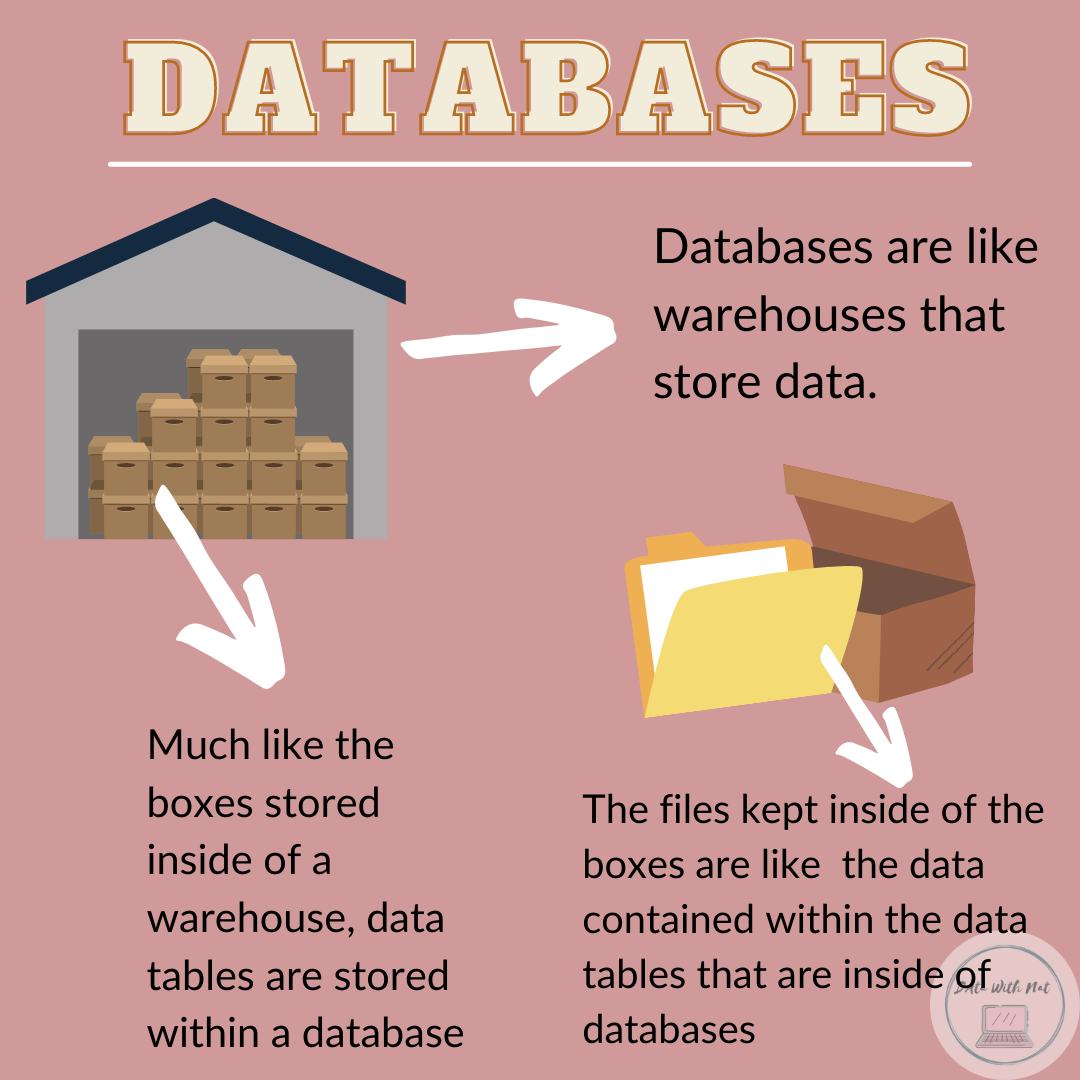
Tools Required
- MySQL Community Edition(Free) | Link to Download
- MySQL Workbench | Link to Download
- Excel or Google Sheets
Data
- Sample Sales Data from Kaggle | Link to Download.
- Github Repository | Link
Creating an Entity Relationship Diagram (ERD)
An entity relationship diagram is flowchart that illustrates how entities relate to each other. The whole point of a relational databases is that they are made up of tables that connect to one another. Creating an ERD helps you map out what data you want in the tables. MySQL workbench comes equipped with a Modeling EER(Enhanced Entity Relationship) Diagram software which I used to create my ERD. You can also use other tools such as dbdiagram.io.
Step 1: Examine the raw data on excel. Identify and section the data off into potential tables: customers, orders, product, order status.

When sectioning off the data ask yourself: which columns are traits of this table? For example: Order number is a trait or characteristic of an order therefore it should be a part of the orders table. A customer’s address would be a characteristic of the customer therefore belongs in the customers table
Tip: Color the columns according to what table you want it to be in. A visual technique to help separate the columns
Step 2: After brainstorming which columns go with each table. Use a program to create a model of an entity relationship diagram.
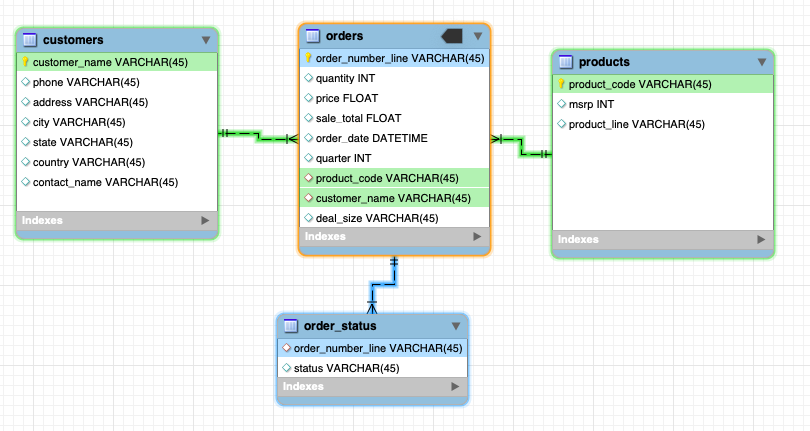
Step 3: Decide whether a primary key and/or foreign key should be created for each table. For example: Since the order_number column was not unique it could not be the primary key of the orders table. However, each row of the data has an orderline_number corresponding to the order of the items in the invoice. Combining the order_number column and orderline_number column would be the best choice for the primary key of the orders table since it would uniquely identify each row.
Note: A Primary key is the column that uniquely identifies a table. This means that each value in the primary key column is unique. For example: in the products table the product_code column identifies every row/record in the table. Primary keys and foreign keys can be a confusing topic: This Youtube video was very helpful to me | Link
Step 4: Review your model and make sure there are columns in each of the tables that can be used to join them. For example: The customer name column is included in both the customers table and the orders table to ensure that a join can be performed when querying the data. In this case, the customer_name column is a foreign key that references to the customers table. Foreign keys are columns that are primary keys in another table.
Cleaning Data in Excel/Google Sheets
Clean the data in Excel or Google Sheets.
Step 1: Common data errors
- Duplicate the original data sheet to keep as a backup in case you want to reverse any changes.
- Apply filters to all columns to easily check for errors and incorrectly formatted data.

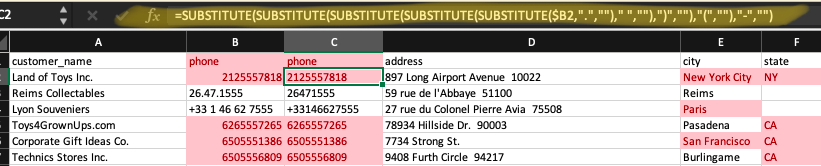
To format phone numbers use nested SUBSTITUTE functions. Replace all unwanted characters ”-(),.” with “”. Then convert column to text so that it can be imported without issue into MySQL.
Step 2: Create a new column with order number and order line number to create a column with unique values for each row (aka primary key) in the orders table.
Step 3: Separate the columns in excel into separate sheets. Each separate sheet will represent a separate table in the relational database. When copying columns to a new sheet make sure to paste them as values only.
Note: After separating the data into separate sheets make sure to check for duplicates. For example: Make sure that are no duplicates in the product_code column in the product table. The product_code column will be the primary key in the products table so there cannot be any duplicates.
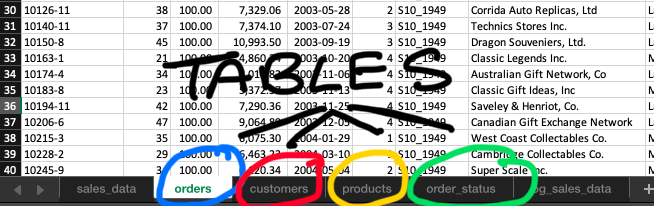
Step 4: Save each separate sheet as a CSV file which will be used to import into the tables in the MySQL database.
Creating the database in MySQL
Step 1: Create an empty database in MySQL. Create the tables: orders, customers, products and order_status. The entire SQL script file is in my Github Repository.
-- SQL
-- Create sales database
CREATE DATABASE sales;
USE sales;

-- Create table 1: orders
DROP TABLE IF EXISTS orders;
CREATE TABLE orders (
	order_number_line VARCHAR(45),
    quantity INT,
    price FLOAT,
    sale_total FLOAT,
    order_date DATETIME,
    quarter INT,
    product_code VARCHAR(45),
    customer_name VARCHAR(45),
    deal_size VARCHAR(45),
    PRIMARY KEY (order_number_line)
    );

-- Create table 2: customers
DROP TABLE IF EXISTS customers;
CREATE TABLE customers (
	customer_name VARCHAR(45),
    phone VARCHAR(45),
    address VARCHAR(100),
    city VARCHAR(45),
    state VARCHAR(45),
    country VARCHAR(45),
    contact_name VARCHAR(45),
    PRIMARY KEY (customer_name)
    );

-- Create table 3: products
DROP TABLE IF EXISTS products;
CREATE TABLE products (
	product_code VARCHAR(45),
    msrp FLOAT,
    product_line VARCHAR(45),
    PRIMARY KEY (product_code)
    );

-- Create table 4: order_status
DROP TABLE IF EXISTS order_status;
CREATE TABLE order_status (
	order_number_line VARCHAR(45),
    status VARCHAR(45),
    FOREIGN KEY (order_number_line) REFERENCES orders(order_number_line)
    );
Step 2:
- Import data from csv into the tables using MySQL import wizard.
- Select the csv file with the data.
- Select the table to import the data into.
- Make sure all columns are imported correctly.
- Make sure the number of records imported matches the number of rows in the csv file.
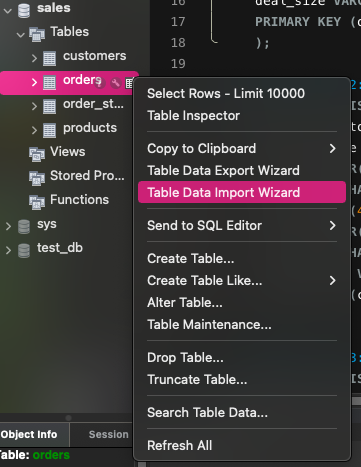
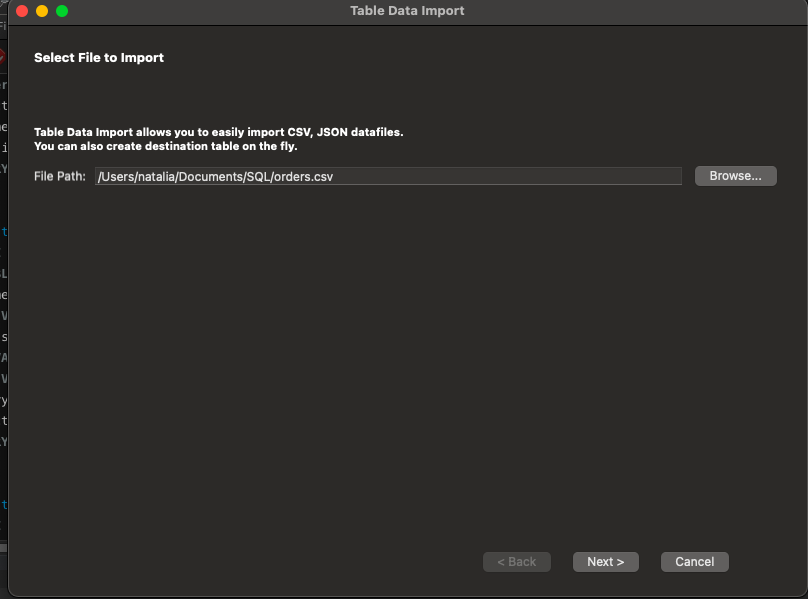
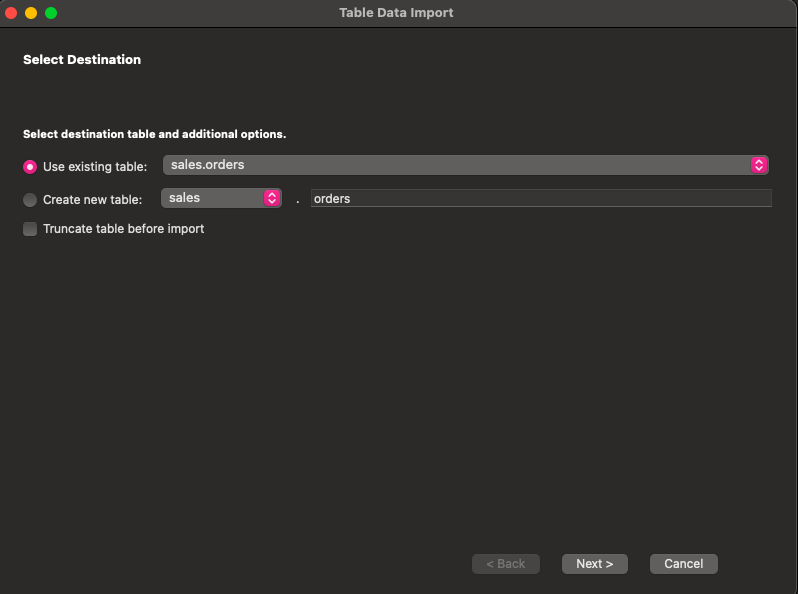
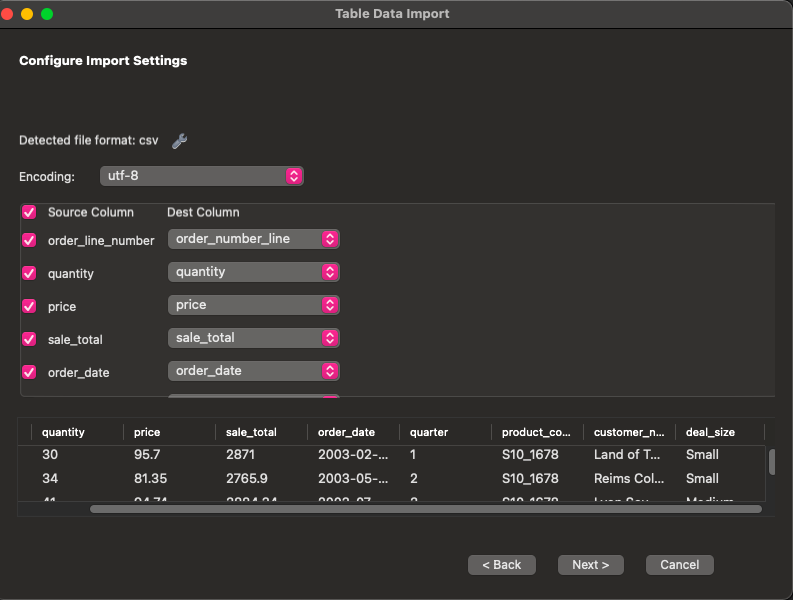
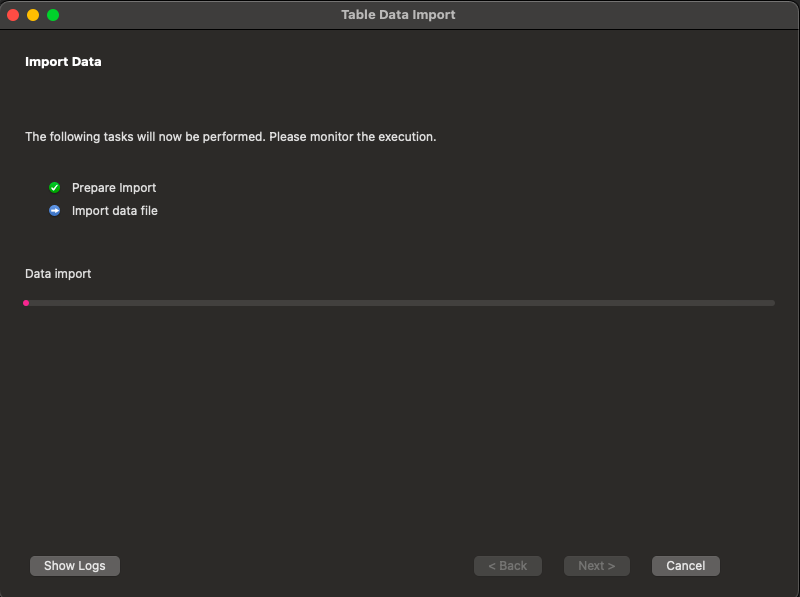
Step 3: Run a query to make sure the data table was correctly imported.
 --SQL
-- Check orders table
SELECT *
FROM orders
LIMIT 25;
-- Check to make sure all rows are imported to the table
SELECT COUNT(*)
FROM orders;
-- There should be the same number of unique values in the order_line_number as rows
SELECT COUNT(DISTINCT order_number_line)
FROM orders;
Potential Errors While Importing
These are a few of the error I had deal with when importing data.
- If imports are failing first make sure that the data types are correct.
- Make sure the date is in ‘YYYY-MM-DD’ format.
- Make sure to remove any symbols that will not interpreted by MySQL.
- Remove excess commas in the address lines to avoid confusion when converted to csv.
- Check that ALL rows are imported. For the customers table I noticed that only 88 of my 92 rows were being imported. I queried the customers table and went through it line by line along side the spreadsheet to check which 4 rows were not imported. Once they were identified, I realized that when I originally made the customers table in MySQL I made the datatype for the address column VARCHAR(45) indicating 45 max characters. However, those four rows had addresses longer than 45 characters.To fix it - I simply updated the max character length.
- I had a lot of difficulties importing the customers csv into my customers data table in MySQL. Before I realized that the problem was that my max character length was too low (see previous bullet point), I thought the problem was that MySQL did not recognize ampersands(&). I went through the customer_name column and changed the ampersands (&) to ‘and’. This resulted in an even bigger error since the customer_name column is also in the orders table. I had to reverse the changes I had made to the customer_name column in my customers table. The customer_name columns have to match in both tables in order for the foreign key constraint to work and the tables can be joined when performing queries.
Step 4: After all data has been imported add foreign key constraints.
 -- SQL
-- IMPORTANT NOTE: Import data into the empty data tables BEFORE adding foreign key constraints or else an error will occur.

-- Alter table 1: orders to add foreign keys
ALTER TABLE orders
ADD FOREIGN KEY (customer_name) REFERENCES customers(customer_name);

ALTER TABLE orders
ADD FOREIGN KEY (product_code) REFERENCES products(product_code);